Computer Use Agents
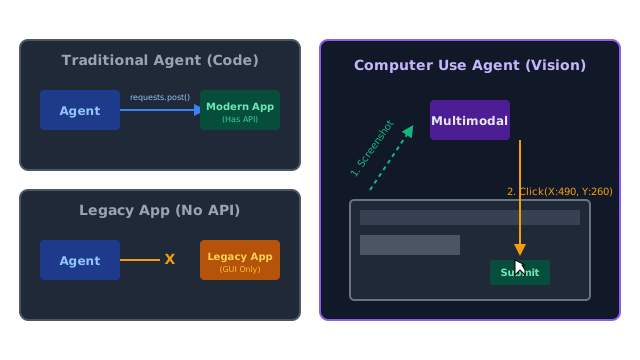
Instead of calling APIs under the hood, a Computer Use Agent actually 'sees' your screen and clicks your mouse to use applications just like a human would.
Why Does This Exist?
Traditional Autonomous Agents interact with the world by calling APIs. If the agent wants to send an email, it calls the gmail_api.send(). If it wants to buy a stock, it calls robinhood_api.buy().
But what happens when an application doesn't have an API?
- A legacy inventory system built in 1998.
- A website that explicitly blocks API access to prevent scraping.
- A desktop application like Microsoft Excel or Adobe Photoshop.
If there is no API, traditional agents are entirely helpless.
Computer Use Agents (pioneered by Anthropic with Claude 3.5 Sonnet) bypass APIs entirely. They interact with the computer using the Graphical User Interface (GUI)—exactly like a human does. They take screenshots, read the screen, and output the exact X and Y coordinates to move the mouse and click buttons.
Think of It Like This
Booking a Flight
Traditional API Agent: You ask the agent to book a flight. It sends a structured JSON payload to the https://api.delta.com/v1/book endpoint. Delta's server responds with a confirmation.
Computer Use Agent: The agent takes a screenshot of your Desktop. It finds the Chrome icon and double-clicks it. It types delta.com into the URL bar and hits Enter. It takes another screenshot. It finds the "Departure City" text box, clicks it, and types "JFK". It literally browses the web for you.
How It Actually Works
A Computer Use Agent relies heavily on Multimodal LLMs (models that can understand images) and a specialized Agent Harness that grants it access to OS-level controls.
The Execution Loop
- Observation: The Agent Harness takes a screenshot of the virtual machine and sends it to the LLM.
- Reasoning: The LLM analyzes the image. "I see the 'Submit' button. It is located at coordinates X=450, Y=820."
- Action: The LLM outputs a specific tool call:
mouse_click(x=450, y=820). - Execution: The Python backend uses a library like
pyautoguiorxdotoolto physically move the mouse to those coordinates and send a click event. - Repeat: The backend takes a new screenshot (which now shows the next page) and sends it back to the LLM.
The Anthropic Standard
Anthropic formalized this by providing three standard tools that the LLM is pre-trained to use:
computer: For mouse movements, clicks, and keyboard typing.bash: For running terminal commands.text_editor: For reading and writing files.
Code
This conceptual code shows how you bridge the LLM's output with actual mouse movements using Python.
import pyautogui # Library to control the mouse/keyboardimport mss # Library to take screenshotsimport base64import openai
def take_screenshot(): with mss.mss() as sct: sct.shot(output="screen.png") with open("screen.png", "rb") as image_file: return base64.b64encode(image_file.read()).decode('utf-8')
def computer_use_loop(task): print(f"Goal: {task}") # Take initial screenshot img_b64 = take_screenshot() prompt = f"Task: {task}. Here is the screen. Reply ONLY with JSON: {{'action': 'click'|'type', 'x': int, 'y': int, 'text': str}}" # 1. Send screenshot to Multimodal LLM response = openai.chat.completions.create( model="gpt-4o", messages=[ {"role": "user", "content": [ {"type": "text", "text": prompt}, {"type": "image_url", "image_url": {"url": f"data:image/png;base64,{img_b64}"}} ]} ] ) # 2. Parse the LLM's decision decision = eval(response.choices[0].message.content) # e.g., {'action': 'click', 'x': 200, 'y': 300} # 3. Execute the physical action on the OS if decision['action'] == 'click': print(f"Agent moving mouse to ({decision['x']}, {decision['y']}) and clicking.") pyautogui.click(x=decision['x'], y=decision['y']) elif decision['action'] == 'type': print(f"Agent typing: {decision['text']}") pyautogui.write(decision['text'])
# --- Execution ---# Note: This is highly simplified. A real loop would repeat until the task is done.computer_use_loop("Click the 'Start' button in the bottom left corner.")
# -> Goal: Click the 'Start' button in the bottom left corner.# -> Agent moving mouse to (25, 1050) and clicking.Watch Out For
Extreme Sandboxing Required
If a standard agent hallucinating is dangerous, a Computer Use Agent hallucinating is catastrophic. It is literally controlling the mouse and keyboard. If you run this on your personal laptop, a hallucinating agent might click into your email client, select all emails, and hit the delete key. You must absolutely never run Computer Use Agents on your personal or production machines. They must always be run inside secure, disposable Agent Sandboxes (like an isolated Docker container running a virtual display).
The Quick Version
- Traditional agents require APIs to interact with software.
- Computer Use Agents look at screenshots of the GUI and interact by physically moving the mouse and typing on the keyboard.
- This allows agents to automate legacy software, desktop apps, and un-scrapable websites.
- They rely heavily on fast multimodal LLMs and must be run inside secure sandboxes to prevent accidental damage.